

Submitting an Error
How to report errors from Unoplat Code Confluence operations
Submitting an Error
Unoplat Code Confluence includes a built-in error reporting system that automatically creates GitHub issues when operations fail. This helps us track and resolve issues quickly while providing you with a way to monitor the progress of your reported errors.
Error Reporting Workflow
Step 1: Navigate to Operations Panel
Go to Workspace > Operations Management in the sidebar to view all your operations.
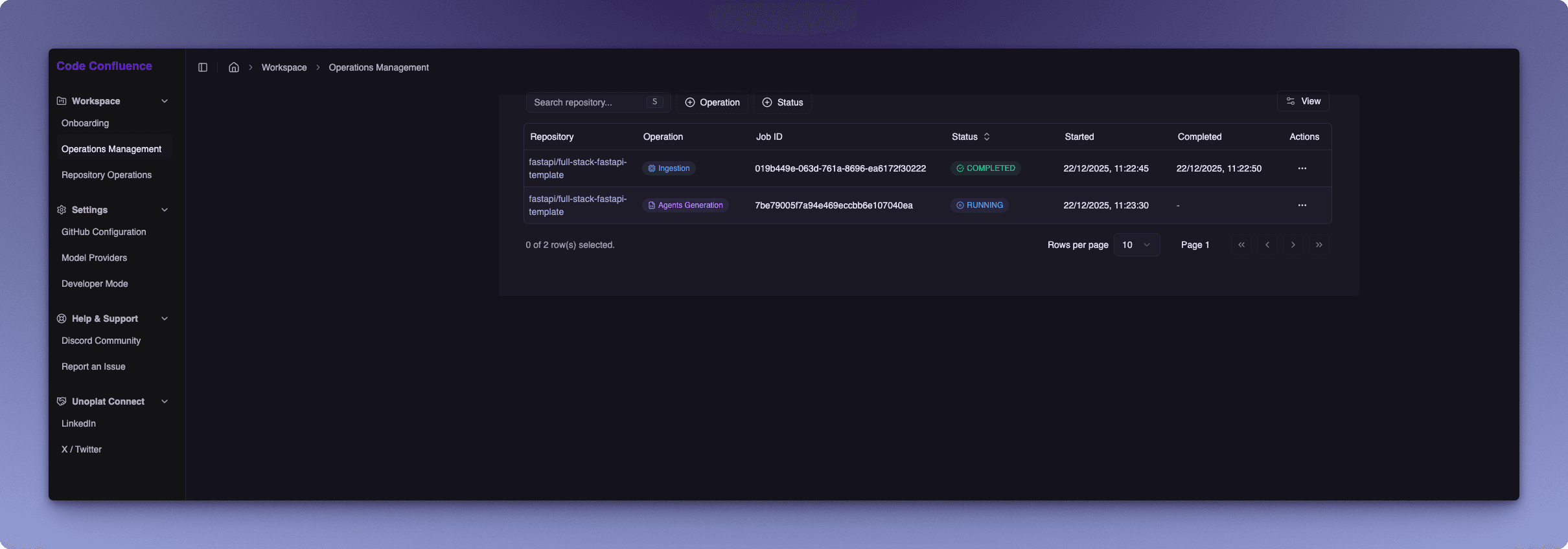
The Operations Panel displays a table with all your operations including:
- Repository — The repository being processed
- Operation — Type of operation (Ingestion, Agents Generation)
- Job ID — Unique identifier for the operation
- Status — Current status (Running, Completed, Failed)
- Started/Completed — Timestamps for the operation
Step 2: Identify the Failed Operation
Look for operations with a Failed status in the table. Click the Actions menu (...) for the failed operation and select View Details.
Step 3: Review Error Details
The error details dialog provides comprehensive information about what went wrong:
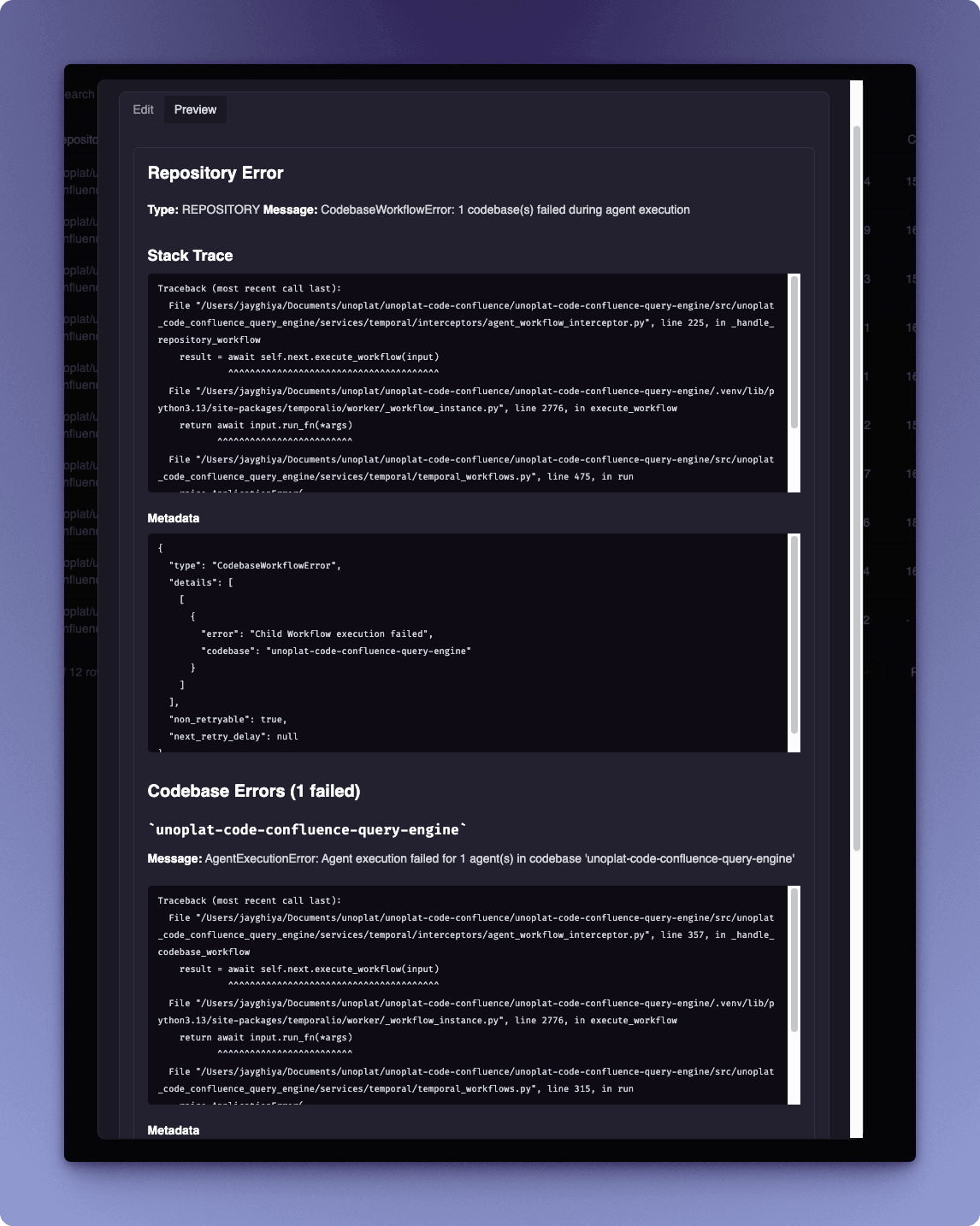
The dialog includes:
- Error Type and Message — High-level description of the error
- Stack Trace — Technical details showing where the error occurred
- Metadata — JSON object with additional error context
- Codebase Errors — Specific errors for each affected codebase
Step 4: Submit Error Report
Click the Submit Error button to open the error submission dialog.
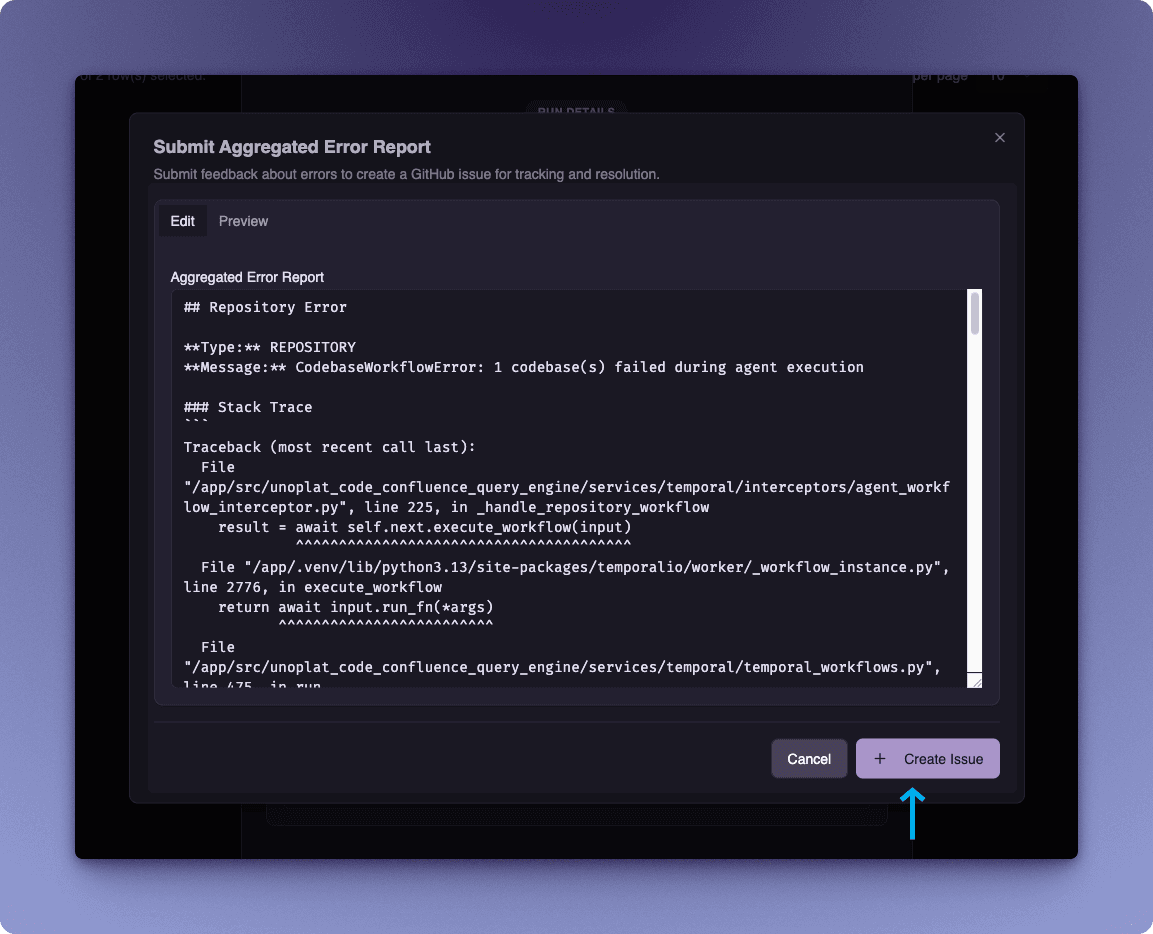
The Submit Aggregated Error Report dialog allows you to:
- Review the pre-populated error report in the Edit tab
- Preview the formatted report in the Preview tab
- Edit any details before submission if needed
- Click Create Issue to automatically create a GitHub issue
What Gets Shared
When you submit an error report, the following information is included:
- Stack trace — Technical details of where the error occurred
- Codebase name — The name of the affected codebase
- Workflow run ID — Identifier for the specific operation run
If there are any details in the error report that you prefer not to share, you can edit them directly in the dialog before clicking Create Issue.
Step 5: Track Your Issue
After submitting the error, you can track your GitHub issue directly from the application.
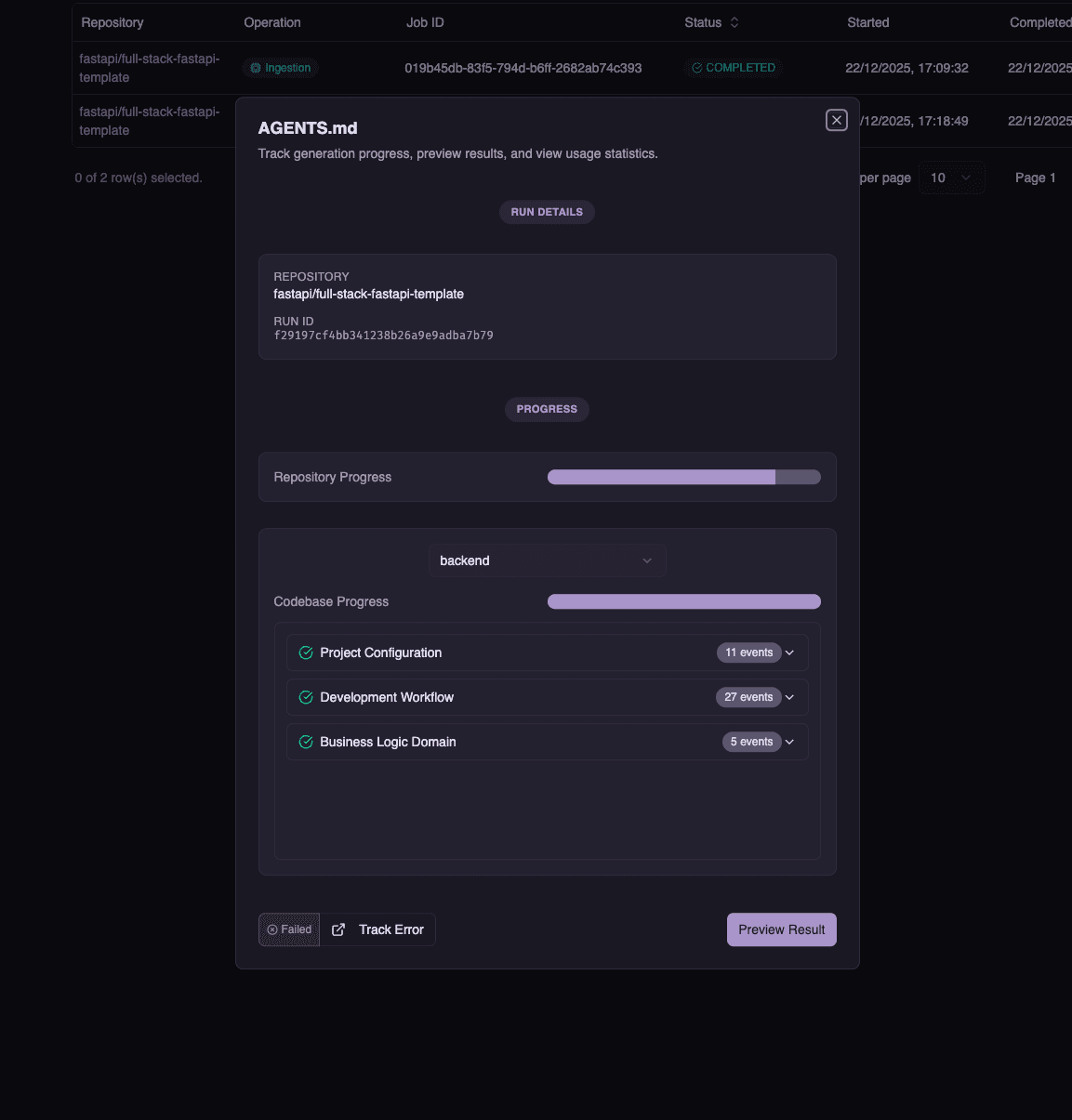
Click the Track Error button (with the external link icon) to open the GitHub issue in your browser. This allows you to:
- Monitor the status of your reported issue
- Add additional context or comments
- Receive updates when the issue is addressed
Supported Operations
Error reporting is available for all Unoplat Code Confluence operations:
| Operation | Description |
|---|---|
| Ingestion | Repository cloning and codebase detection |
| Agents Generation | AGENTS.md file generation |
Need More Help?
If you need immediate assistance or want to discuss an issue with the community, join our Discord Community.