

Submitting Feedback
How to submit feedback — in-app general feedback and agent generation feedback
Submitting Feedback
Unoplat Code Confluence provides two ways to share feedback:
- In-App Feedback — Send general feedback (bug reports, feature requests, or comments) directly to the Unoplat team from within the application.
- Agent Generation Feedback — Rate and review the results of a completed AI Agent Generation operation, submitted as a GitHub issue.
In-App Feedback
You can send general feedback at any time using the built-in Send Feedback command.
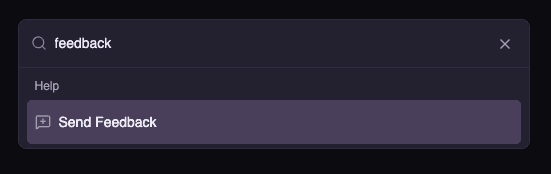
Opening the Feedback Dialog
Open the Command Palette and search for "feedback", then click Send Feedback.
Filling Out the Form
The Send Feedback dialog lets you describe your experience:
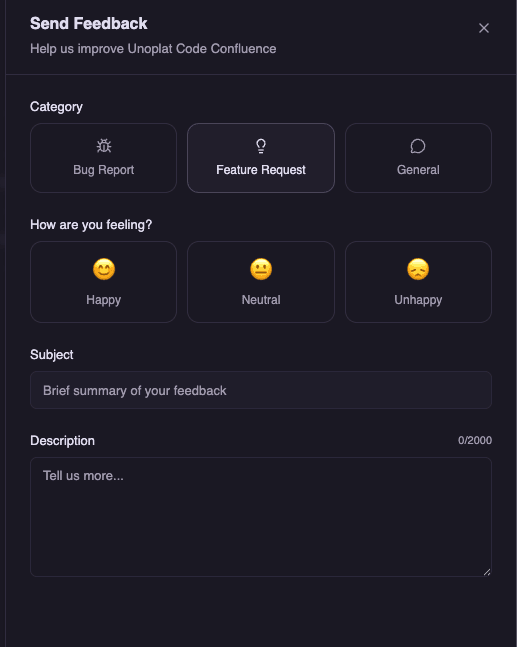
| Field | Description |
|---|---|
| Category | Select one: Bug Report, Feature Request, or General |
| How are you feeling? | Choose a sentiment: Happy, Neutral, or Unhappy |
| Subject | A brief summary of your feedback |
| Description | Detailed feedback (up to 2000 characters) |
Where does this go?
In-app feedback is sent directly to the Unoplat team for review.
Agent Generation Feedback
After a completed AI Agent Generation operation, you can rate the generated results and submit detailed feedback as a GitHub issue. This helps improve the quality of generated AGENTS.md documentation.
Step 1: Navigate to Operations Panel
Go to Workspace > Operations Management in the sidebar to view all your operations.
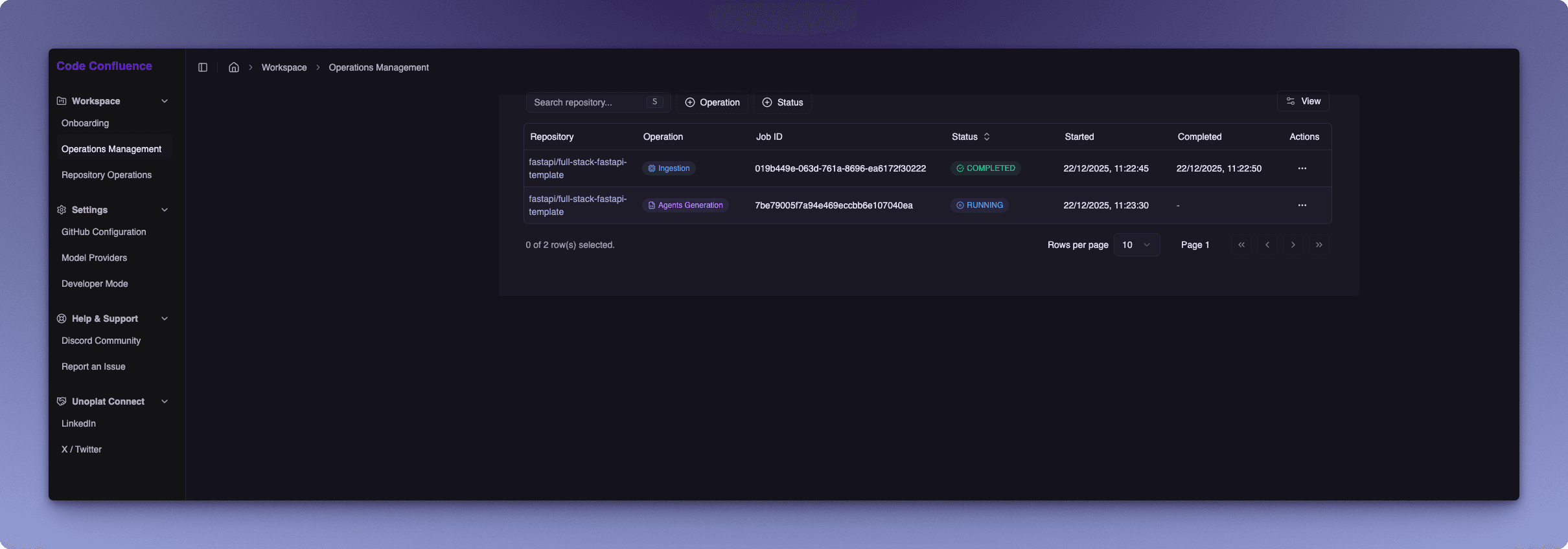
The Operations Panel displays a table with all your operations including:
- Repository — The repository being processed
- Operation — Type of operation (Ingestion, Agents Generation)
- Job ID — Unique identifier for the operation
- Status — Current status (Running, Completed, Failed)
- Started/Completed — Timestamps for the operation
Step 2: Access Completed Operation
Locate a Completed AI Agent Generation operation in the table. Click the Actions menu (...) for the operation and select View Details to open the operation details dialog.
Step 3: Click Give Feedback
In the operation details view, click the Give Feedback button to begin the feedback submission process.
Step 4: Rate Your Experience
The first screen allows you to rate your overall experience with the generated agents:
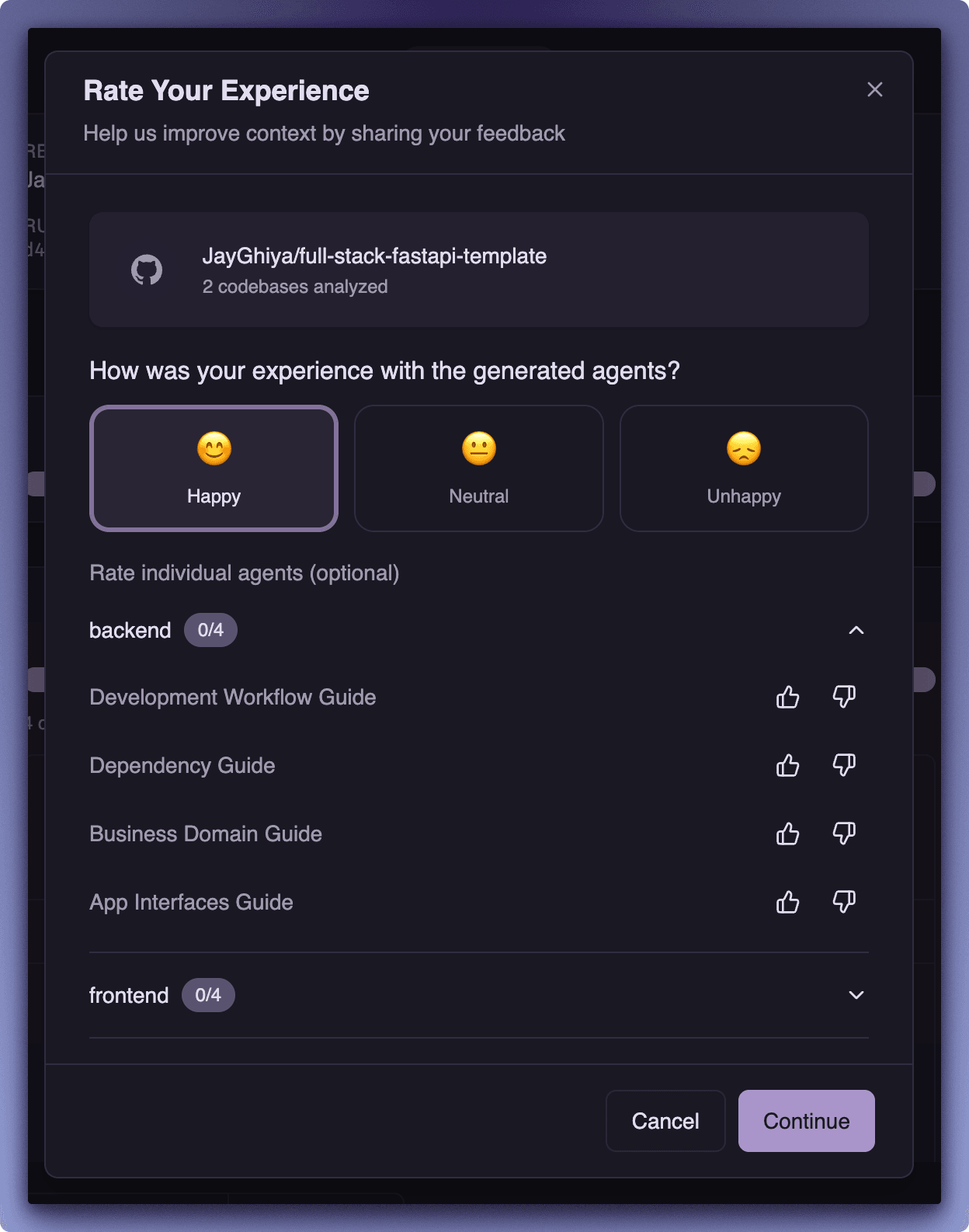
This form includes:
| Section | Description |
|---|---|
| Repository Info | Shows the repository name and number of codebases analyzed |
| Overall Experience | Select your overall mood: Happy, Neutral, or Unhappy |
| Rate Individual Agents | (Optional) Expand to rate specific sections for each codebase |
The individual agent ratings use a simple thumbs up / thumbs down system for each agent:
| Agent | What It Covers |
|---|---|
| Development Workflow Guide | Development practices, build processes, and workflow documentation |
| Dependency Guide | Dependency analysis and package configuration documentation |
| Business Domain Guide | Core business logic and domain model documentation |
| App Interfaces Guide | API endpoints, interface contracts, and integration documentation |
Click Continue to proceed to the next step.
Step 5: Provide Additional Details
The second screen allows you to provide more specific feedback:
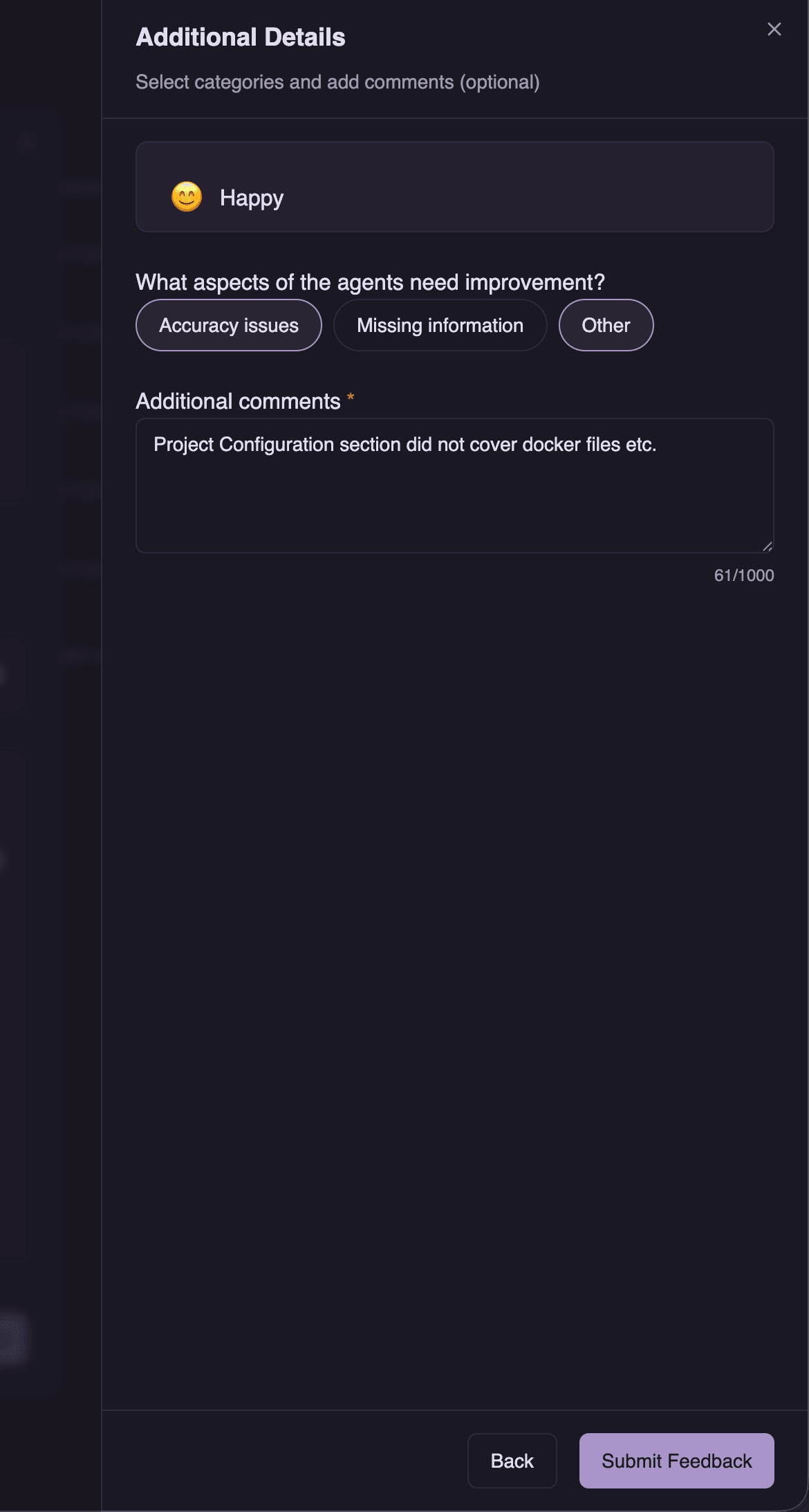
The form includes:
| Field | Description |
|---|---|
| Selected Mood | Displays your previously selected mood |
| Improvement Categories | Select applicable categories: Accuracy issues, Missing information, Other |
| Additional Comments | Provide specific details about what could be improved (required, max 1000 characters) |
Tip
Be specific in your additional comments. For example, instead of "Missing information", describe what specific section or topic was not covered in the generated documentation.
Click Submit Feedback to create a GitHub issue with your feedback.
Step 6: Track Your Feedback
After submitting your feedback, a confirmation dialog appears with a link to the created GitHub issue.
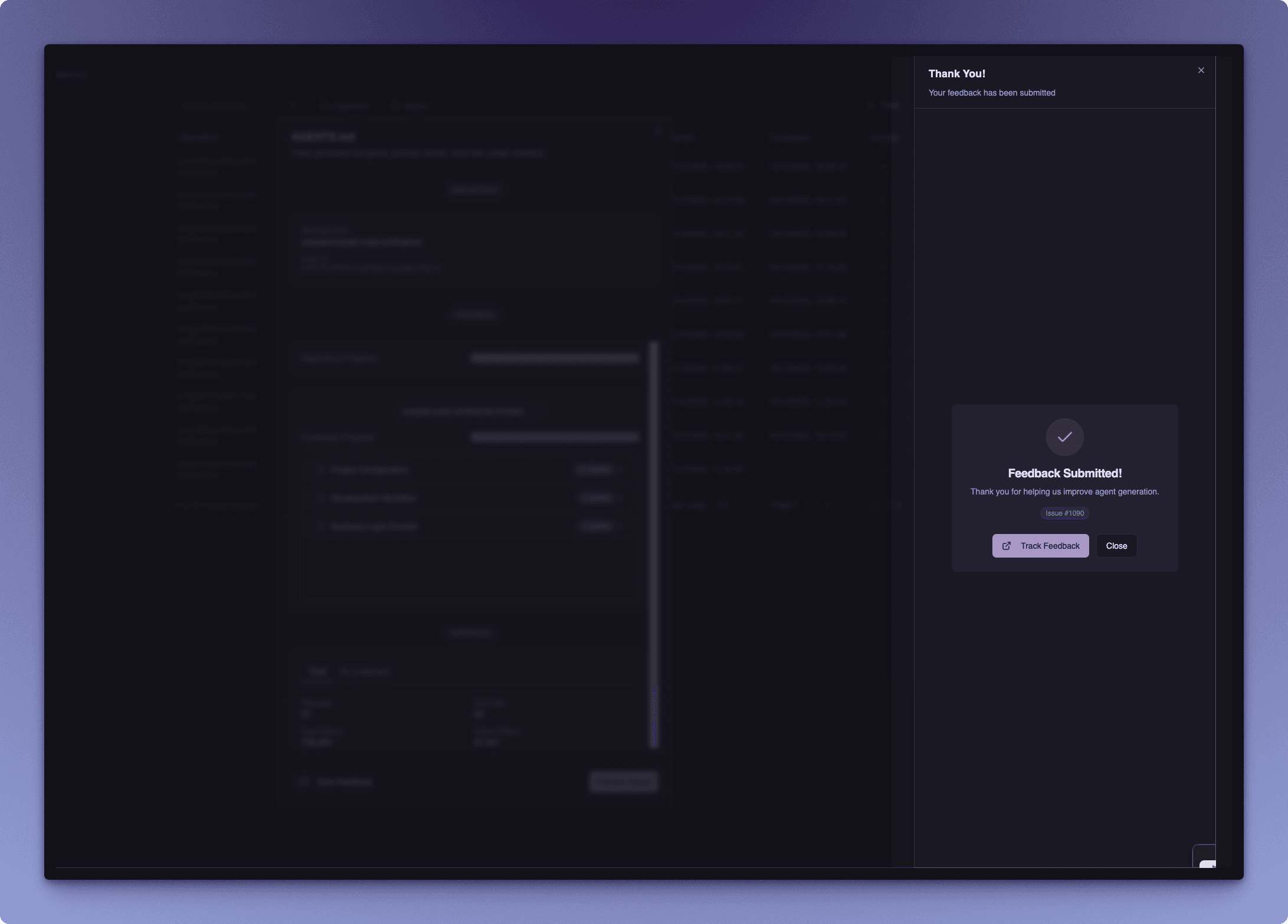
Click the Track Feedback button (with the external link icon) to open the GitHub issue in your browser. This allows you to:
- Monitor the status of your feedback
- Add additional context or follow-up comments
- Receive updates when your feedback is addressed
Supported Operations
Feedback submission is currently available for:
| Operation | Feedback Available |
|---|---|
| Ingestion | Not available |
| Agents Generation | Available |
Need More Help?
If you need immediate assistance or want to discuss feedback with the community, join our Discord Community.